

Feature
The training library: the right exercise, at the right tempo
Knowing what holds you back isn’t enough: you then need the right exercises, and a way to practice them without wasting time. The RIFFLEX training library sorts every exercise by what it works on, and the built-in metronome raises the tempo for you.
One library per technique
The Training page holds one library of exercises per technique: strict alternate picking, legato, sweep picking, tapping… Once you’ve taken a technique’s Crash Test, your personal program shows up there, built from your report.
Each library is free to browse: every card sums up what the exercise works on and how many tempo steps it has.
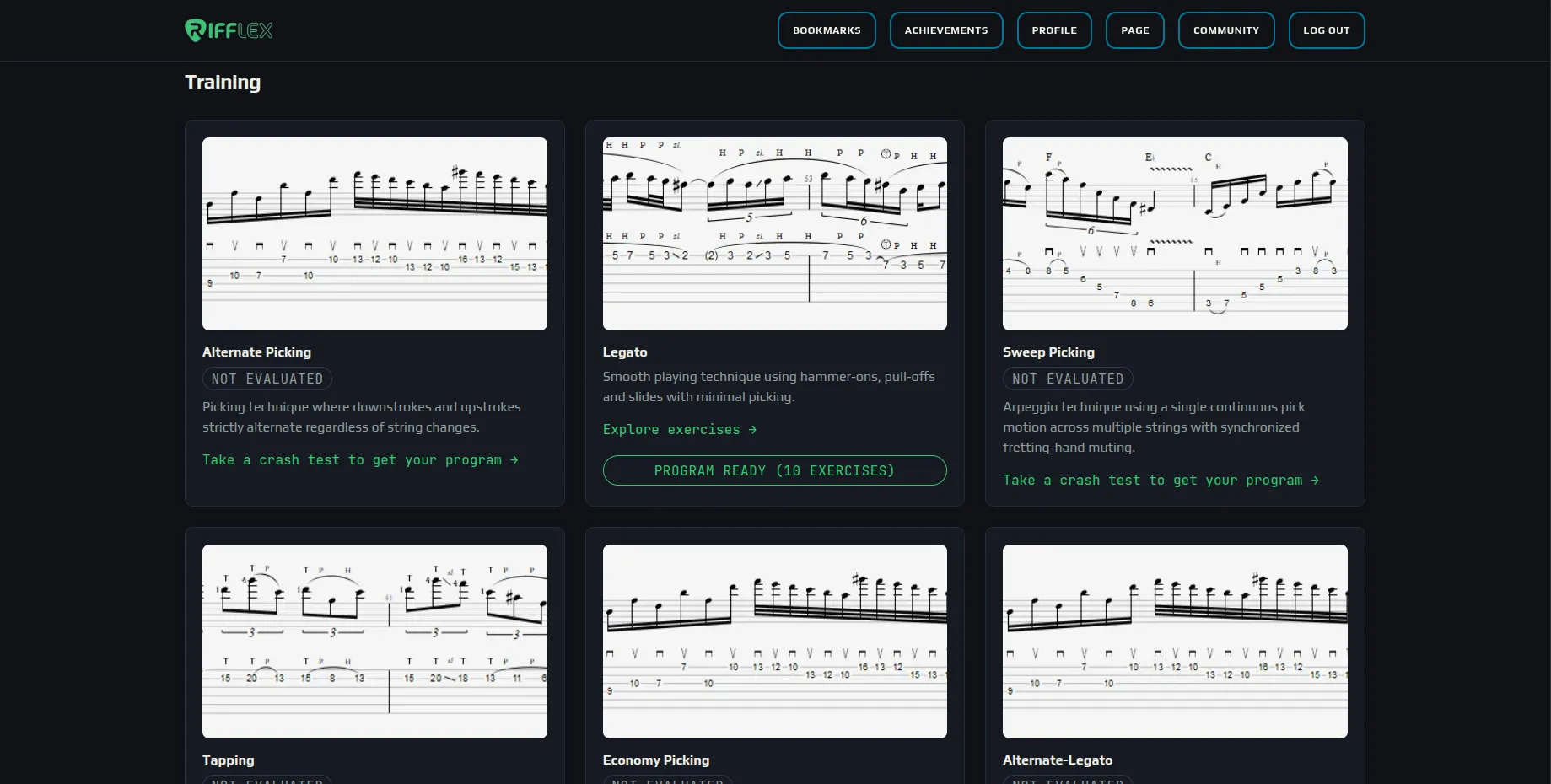
After the Crash Test, the diagnosed technique shows your program: here, 10 legato exercises picked from your report. Techniques not yet assessed invite you to take their Crash Test.
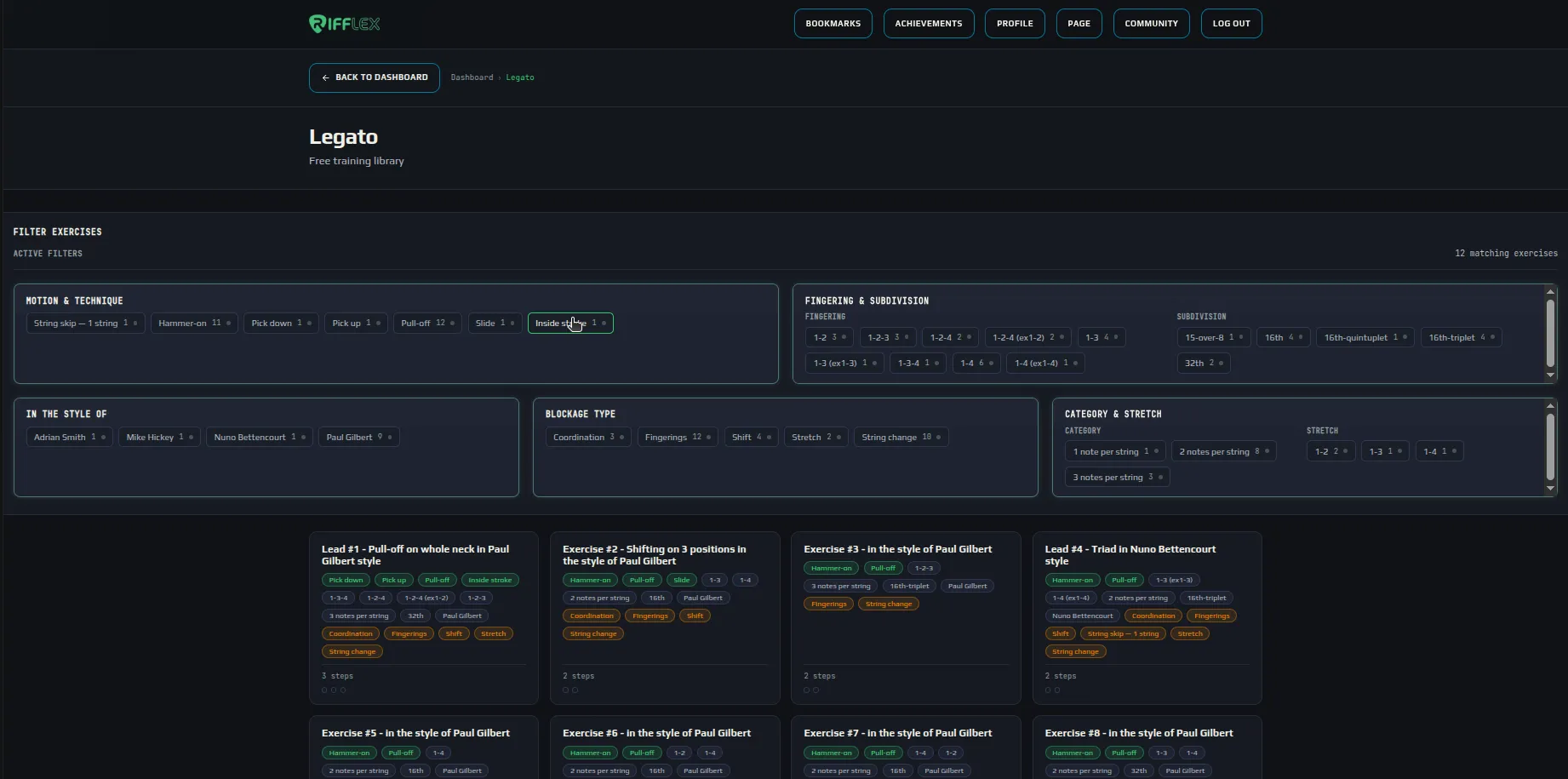
The legato library. On each card: motions in green, the blocks it works on in orange, and the number of tempo steps.
Filters to find the right exercise
Know what you want to work on? The filters cross technique, fingering, rhythm, style and targeted block, and the counter tells you right away how many exercises match.
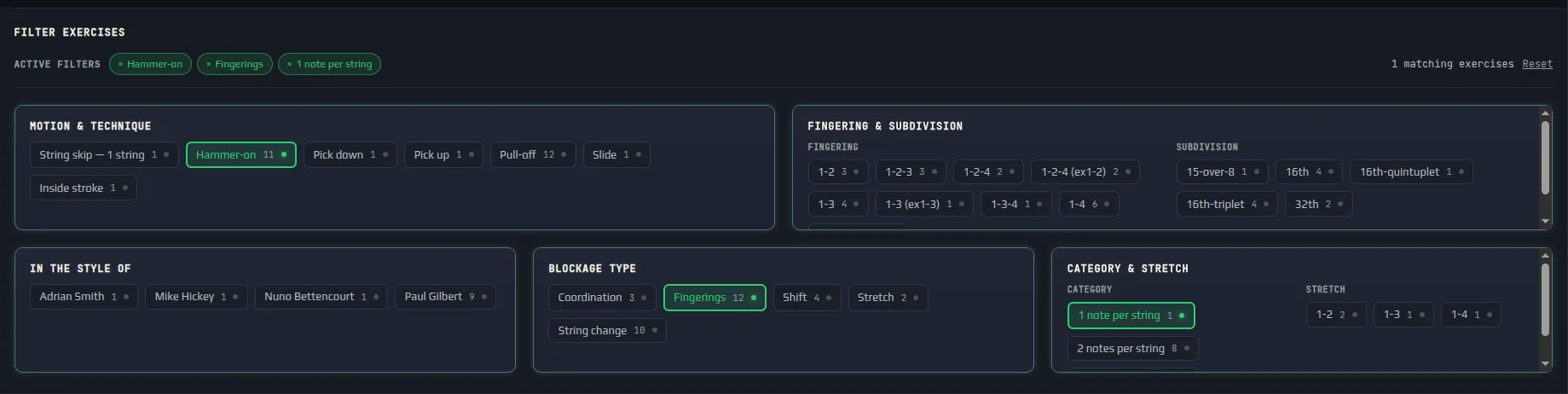
Three active filters, a single exercise that ticks every box.
- Motion & technique
- Hammer-on, pull-off, slide, upstroke or downstroke, string skipping…
- Fingering & subdivision
- The fingers used (1-2, 1-3-4…) and the rhythm: sixteenths, triplets, quintuplets…
- In the style of
- Exercises in the spirit of a guitarist: Paul Gilbert, Nuno Bettencourt, Adrian Smith…
- Targeted block
- The block it targets: fingerings, string change, shift, stretch, coordination.
- Category & spread
- The number of notes per string and the gap between fingers.
- Active filters
- They add up; the counter gives the number of exercises, and Reset starts over.
The exercise screen
Each exercise opens on its full score, with the metronome on the right and a control bar above. The tempo rises on its own as you go, and your best BPM is saved every session.
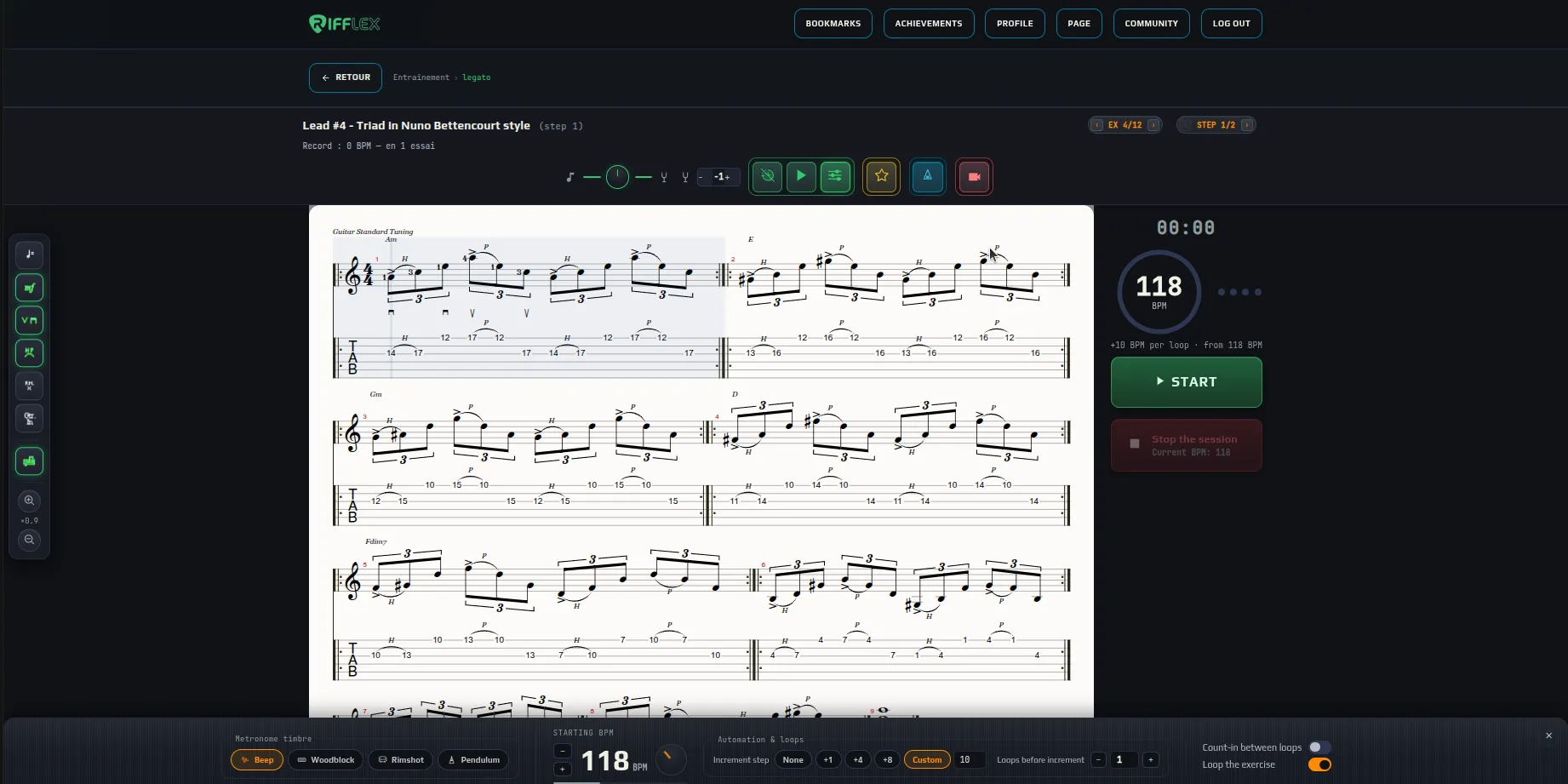
An exercise being set up: the score, the metronome on the right and its settings open at the bottom of the screen.



The control bar of a training exercise. Greyed-out buttons belong to higher plans.
- Title, step and record
- The exercise name, the current tempo step and your best BPM on this exercise, with the number of attempts.
- EX 1/16 and STEP 1/3
- Moves from one exercise of the series to the next, and from one tempo step to the next.
- Balance and transposition
- The score volume against the metronome, and semitone transposition.
- Count-in and preview
- One bar of clicks before playing, and a listen to the exercise before you start.
- Notation options
- Opens the side bar that shows or hides score elements.
- Background, colour, scrolling, logo
- Score settings in video mode. Bar-by-bar scrolling: Shredder and above. Custom logo: VIP and above.
- Bookmark
- The star adds the exercise to your bookmarks, to find it again from your dashboard.
- Metronome
- Opens the metronome settings: sound, start tempo, automatic increase.
- BPM on screen
- Overlays the current tempo on your video.
- Record and system audio
- Opens the video band with your webcam, and adds the score sound to the recording.
- Format and download
- Vertical or horizontal video, and getting the file once the recording is over.


The notation options side bar, opened from the control bar. The position settings only show up in video mode.
- Tempo
- Shows or hides the tempo marking on the score.
- Dynamics (mf)
- Shows dynamics: f, p, mf…
- Pick strokes
- Shows the direction of each stroke, down or up.
- Hammer-on, pull-off, tapping
- Shows the H, P and T letters above slurred notes.
- Palm mute (P.M.)
- Shows muted passages.
- Track name
- Shows the instrument name at the start of the staff.
- Staff + tab
- Switches between standard notation with the tab, or the tab alone with rhythm.
- Zoom
- Enlarges or shrinks the score; the factor shows between the two buttons.
- Move up / down
- In video mode: moves the score inside the band to place it where you want over your picture.
- Cursor position
- In video mode: crops the top and bottom of the score to keep only the staff you need.
A metronome that raises the tempo for you
No more fiddling with the metronome between passes: you pick the start tempo, how much it goes up and after how many passes, then you play.

The metronome settings: you pick the starting tempo and how it rises, RIFFLEX does the rest.
- Metronome sound
- The click sound: beep, wood, rimshot or pendulum.
- Start BPM
- The starting tempo, with the − and + buttons, the mouse wheel or by turning the knob.
- Increment
- How much the tempo goes up at each step: none, +1, +4, +8 or a custom value.
- Passes before increment
- How many times you play the exercise before the tempo goes up.
- Count-in between loops
- Plays a bar of clicks between two passes, to give you a breather.
- Loop the exercise
- Chains the passes without stopping: the tempo rises on its own.