

Feature
Film yourself playing guitar with the tab scrolling
Filming yourself is one of the best ways to improve: video shows what you can’t feel while playing. RIFFLEX lets you record yourself right in your practice session, with the tab on screen.
What the video includes
While you play an exercise, your webcam appears in a band built into the player. The recording brings together:
- Your playing filmed by your camera, with framing that automatically follows your hand along the neck.
- The tab scrolling on screen, in sync with your playing.
- The tempo on screen, so you keep track of the BPM you were playing at.
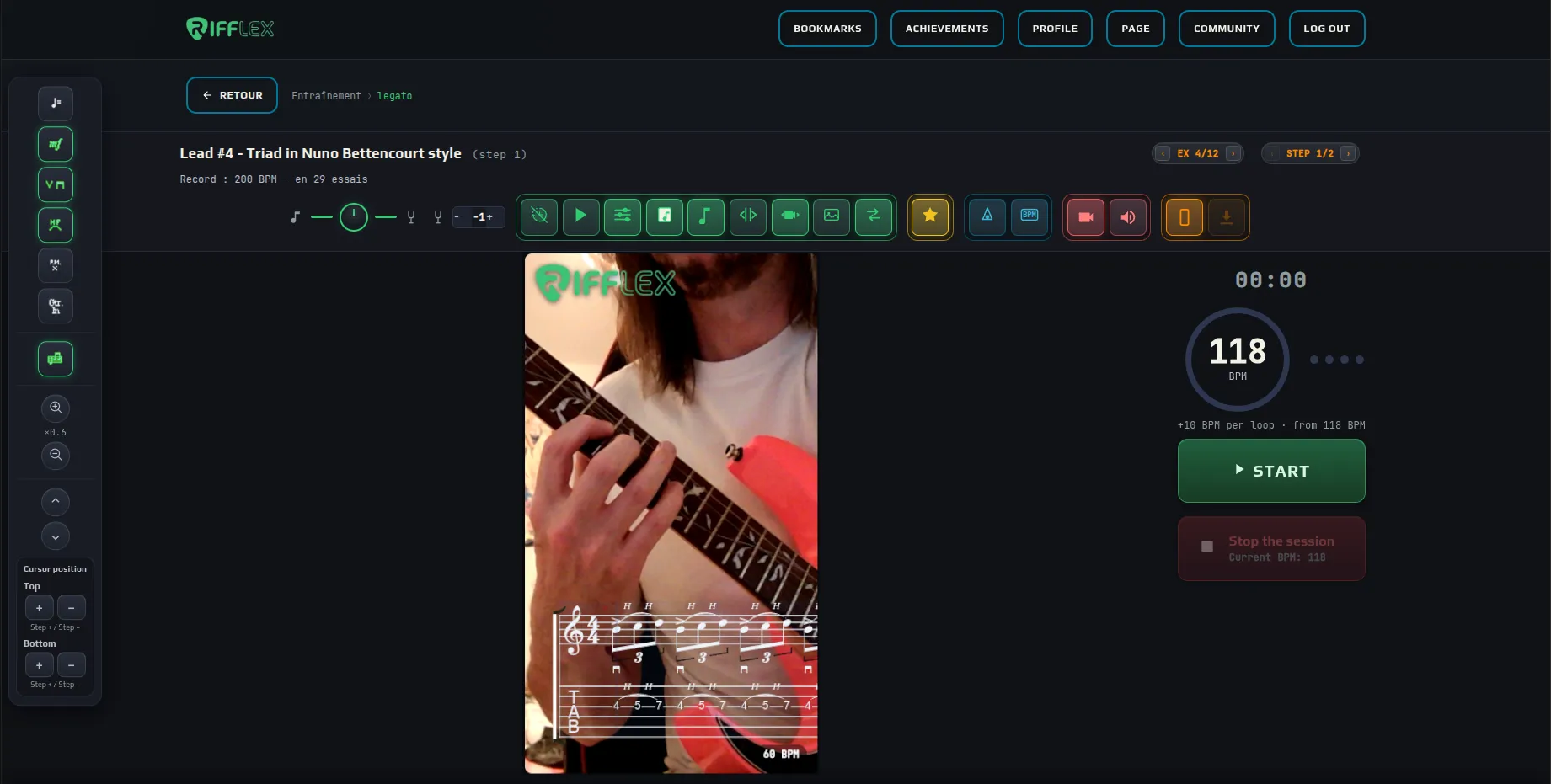
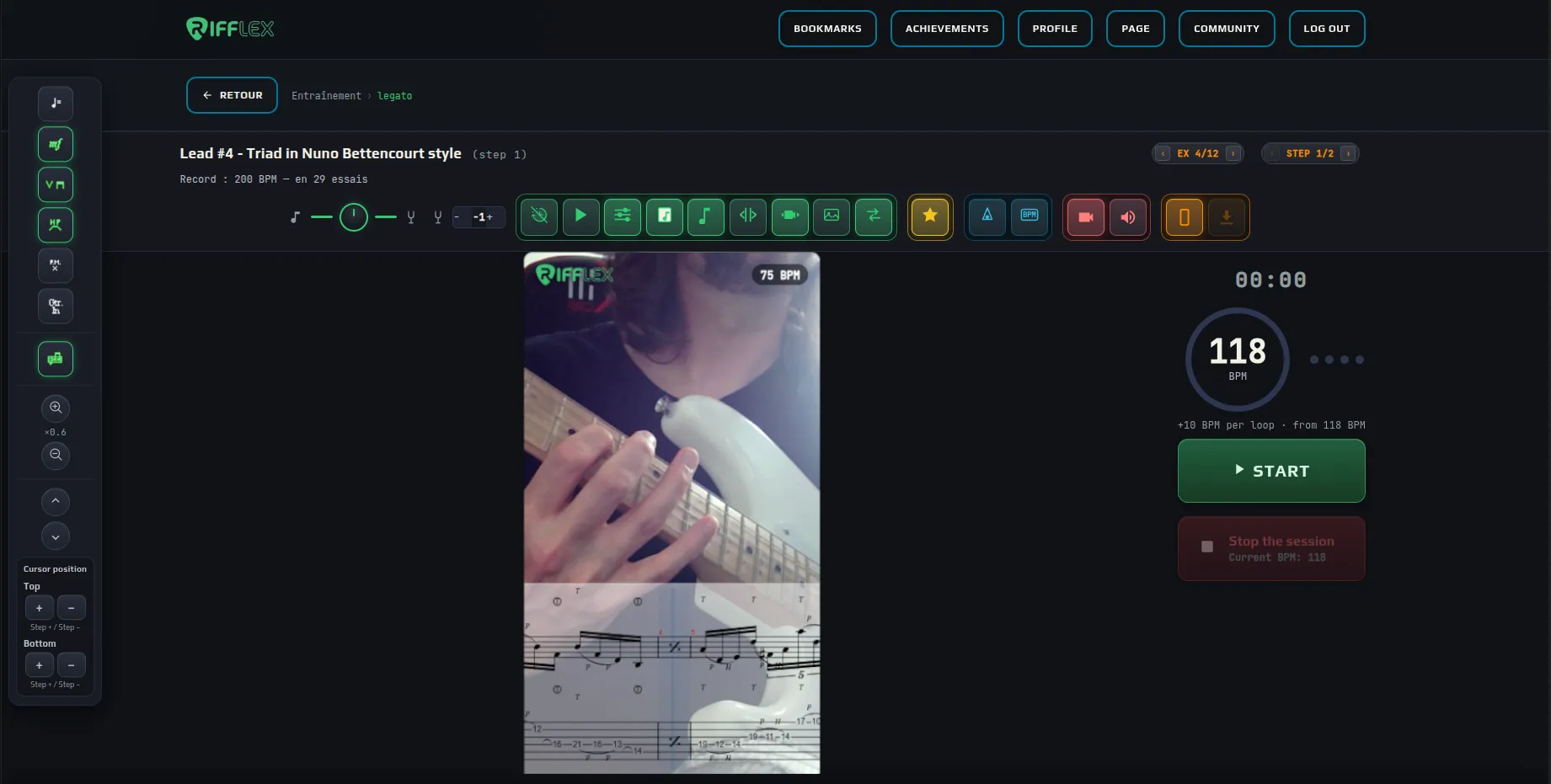
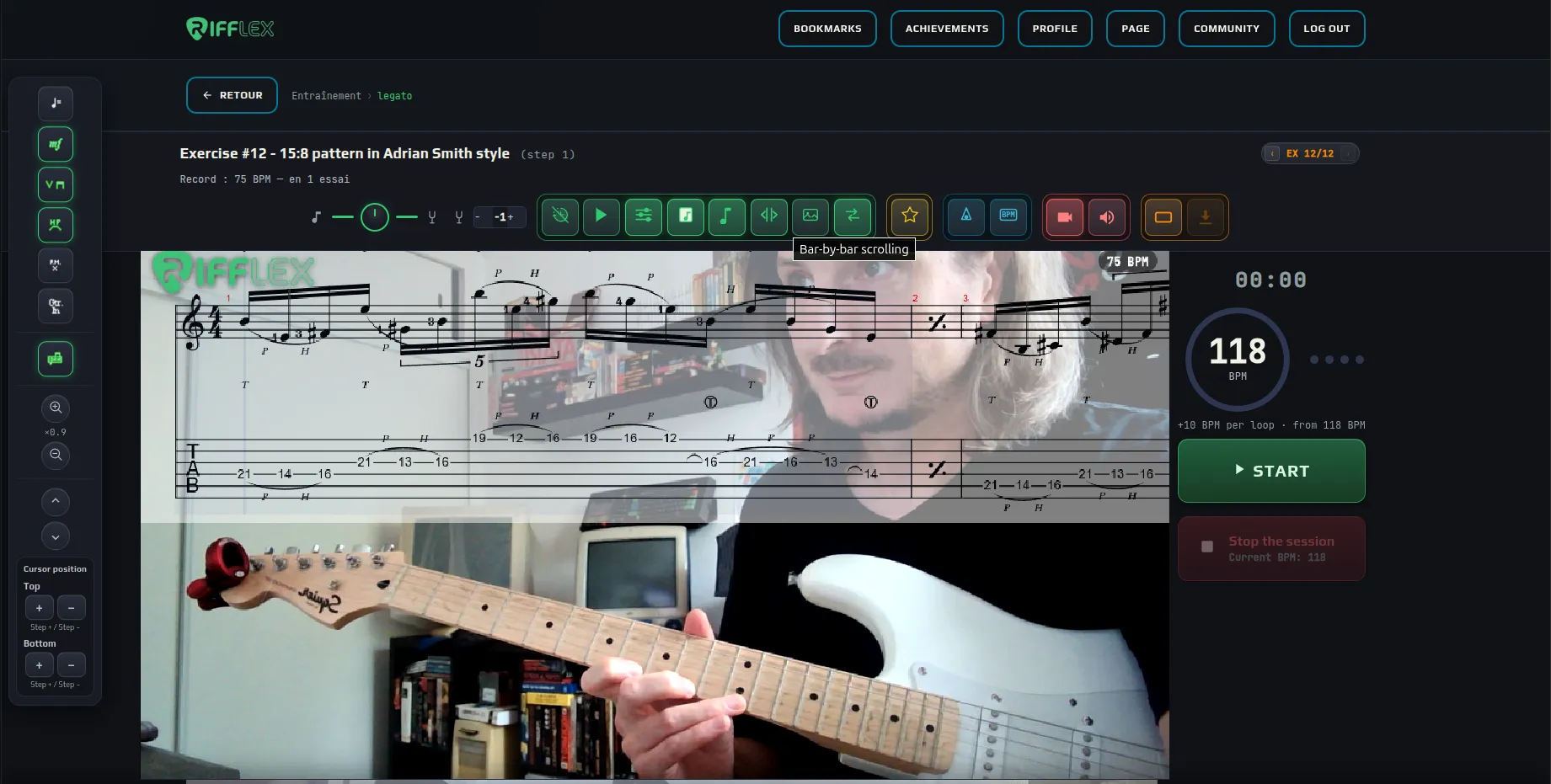
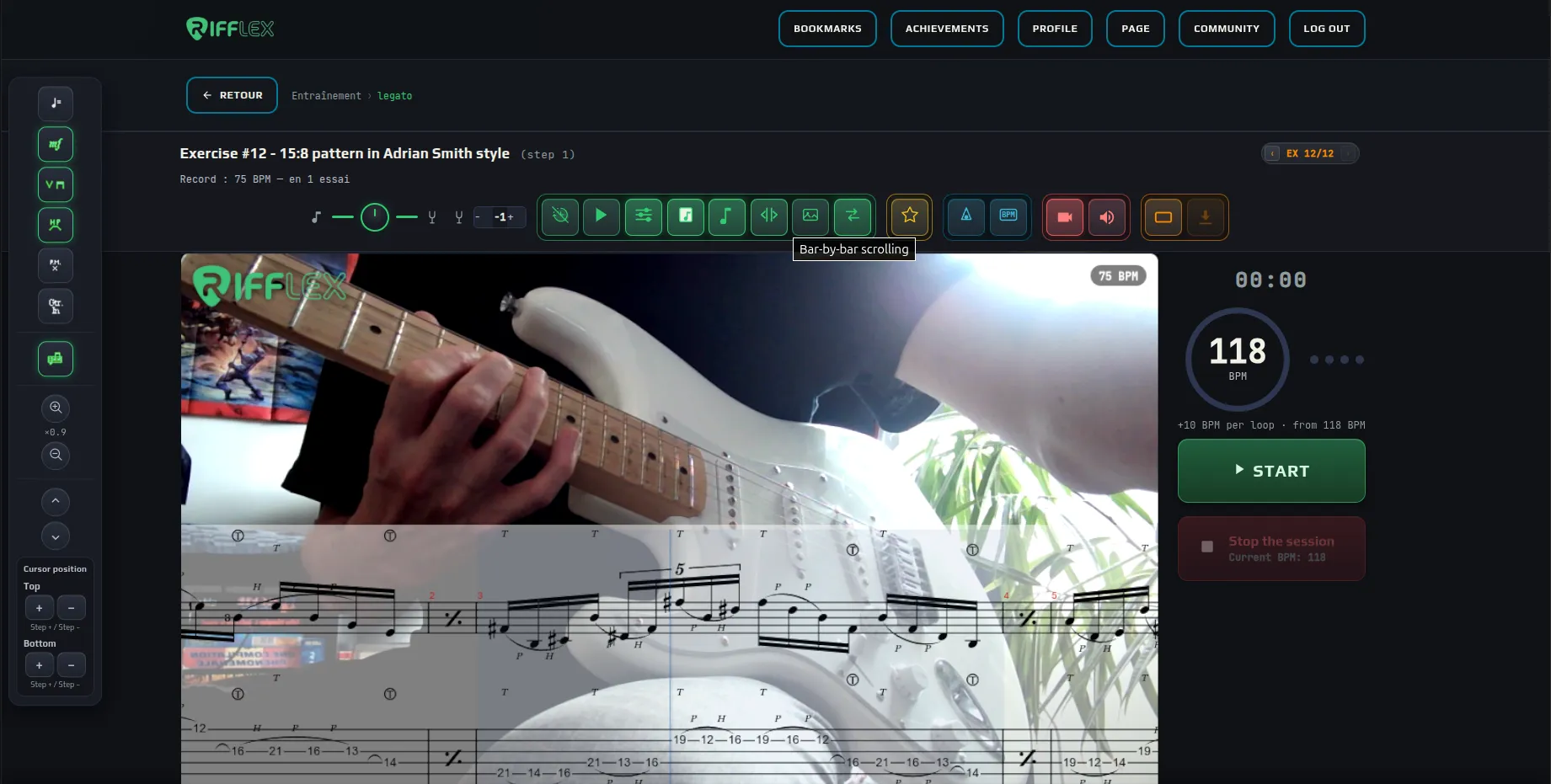
What the video band records, as you see it in the player: vertical or horizontal format, score at the top or the bottom, with or without a background.
- Format
- The orange button switches between vertical (mobile networks) and horizontal.
- Score position
- The side bar arrows move the score up or down, and the cursor position crops whatever sticks out.
- Score background
- White, black or none, so it stays readable whatever your picture.
- Camera follows the hand
- In vertical format, the framing follows your hand along the neck, thanks to markers placed in the tab.
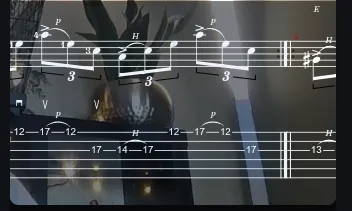
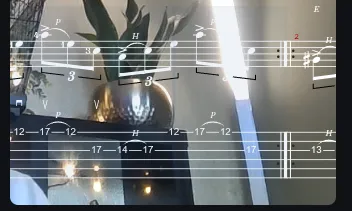
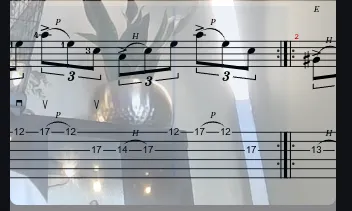
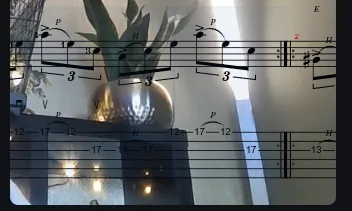
The scrolling tab: white or black, on a white, black or no background, to suit your picture. Open to every registered account.

The video header: RIFFLEX logo by default, tempo shown or not. Your own logo, and a video with no logo, are for VIP members and above.




Greyed-out buttons belong to higher plans: you can see them, and they turn on with the matching plan. Video settings light up once you open the video band; a visitor without an account has no video.
- Score / metronome balance
- The round knob balances the score volume (the note, left) against the metronome click (the tuning fork, right).
- Transposition
- − and + lower or raise the score sound by a semitone, without changing the tab.
- Count-in
- One bar of clicks before you start, to lock into the tempo.
- Play the score
- Lets you hear the exercise at its tempo before playing it.
- Score background
- In video mode: white, black or no background behind the score, so it stays readable over your webcam.
- Tab colour
- In video mode: white or black tab, depending on your picture.
- Bar-by-bar scrolling
- In video mode: the score moves one bar at a time instead of scrolling continuously. Shredder and above.
- Your logo
- In video mode: replaces the RIFFLEX logo with yours. VIP and above.
- Notation options
- Opens the side bar that shows or hides score elements (detailed below).
- Record
- Opens the video band: your webcam under the score.
- System audio
- Adds the score and metronome sound to the video, on top of your microphone.
- Format
- Switches the video between vertical (mobile networks) and horizontal.
- Download
- Gets the video once the recording is over.
Ready to post
Videos record in vertical or horizontal format, depending on where you want to post them. A setting also corrects a slight offset between your playing and the metronome or backing track audio in the video.
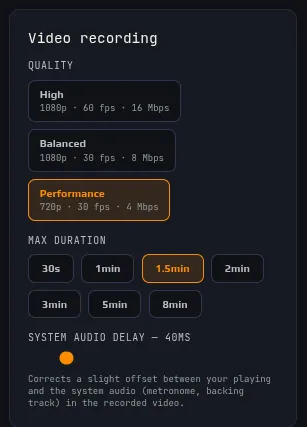
The video settings, in your profile.
- Quality
- High (1080p, 60 fps), Balanced (1080p, 30 fps), or Performance (720p, 30 fps) if your computer struggles.
- Maximum length
- From 30 seconds to 8 minutes per video.
- System audio offset
- Fixes a slight lag between your playing and the metronome or track in the video.
Why filming yourself helps
While playing, your attention is on the notes. Watching yourself afterwards, you catch what slips past you: a finger lifting too far, tension in the shoulder, a thumb that moves. Keeping your videos over time also shows how far you’ve come, especially on days when you feel stuck.